

Leaderboard
-

Troy
Administrators1Points14,765Posts

Popular Content
Showing content with the highest reputation on 10/27/2017 in all areas
-
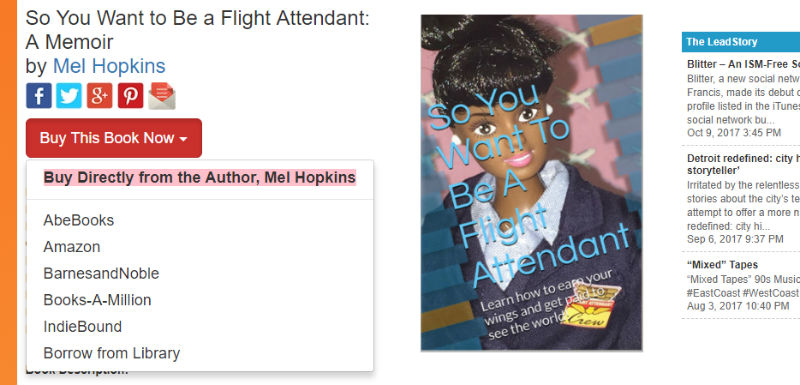
@Mel Hopkins, I'm so glad you explained, in more detail, how marketing and sales work in publishing. Others (especially indie authors) will appreciate the effort it actually takes to get books into the hands of readers. They really do believe Amazon sells books for them and gets them in from of readers and there are no other options. I just updated your link to reflect the AALBC.com button you sent (it will work the same way). Now just to be clear when someone purchases the book are they send back to a thank you page on your site or is the PayPal confirm the last stop? . If you create a customized thank you page I can show you how to use Google Tag Manager to determine where those customers, who actually purchased your book came from. If fact, once you set up Tag manager you can give me limited access to your Tag Manager account and I can set this up for you. I'm currently working with others to do this, but I'd be at you to the list. Just peeping the responses to my survey has been eye opening! While the results don't surprise, as it is consistent with the behavior I've observed, the reasoning is a little surprising. The subject has clearly hit a cord; in less that 24 hours, over a hundred people have filled out the form.... more on that later.
 1 point